
AMAZON SELLERS
templates,
ebooks, and more!
AN ADVANCED SELLER
.svg "Gorilla ROI")

Amazon Journey
Top 5 Strategies to Sustainable Shopify Growth: Turning One-Time Buyers into Lifetime Customers
Article Summary
What you'll learn
- Focus on Customer Lifetime Value (CLV) to drive long-term profitability
- Use retention, loyalty programs, and upselling to boost repeat purchases
- Build strong relationships through great service, personalization, and referals
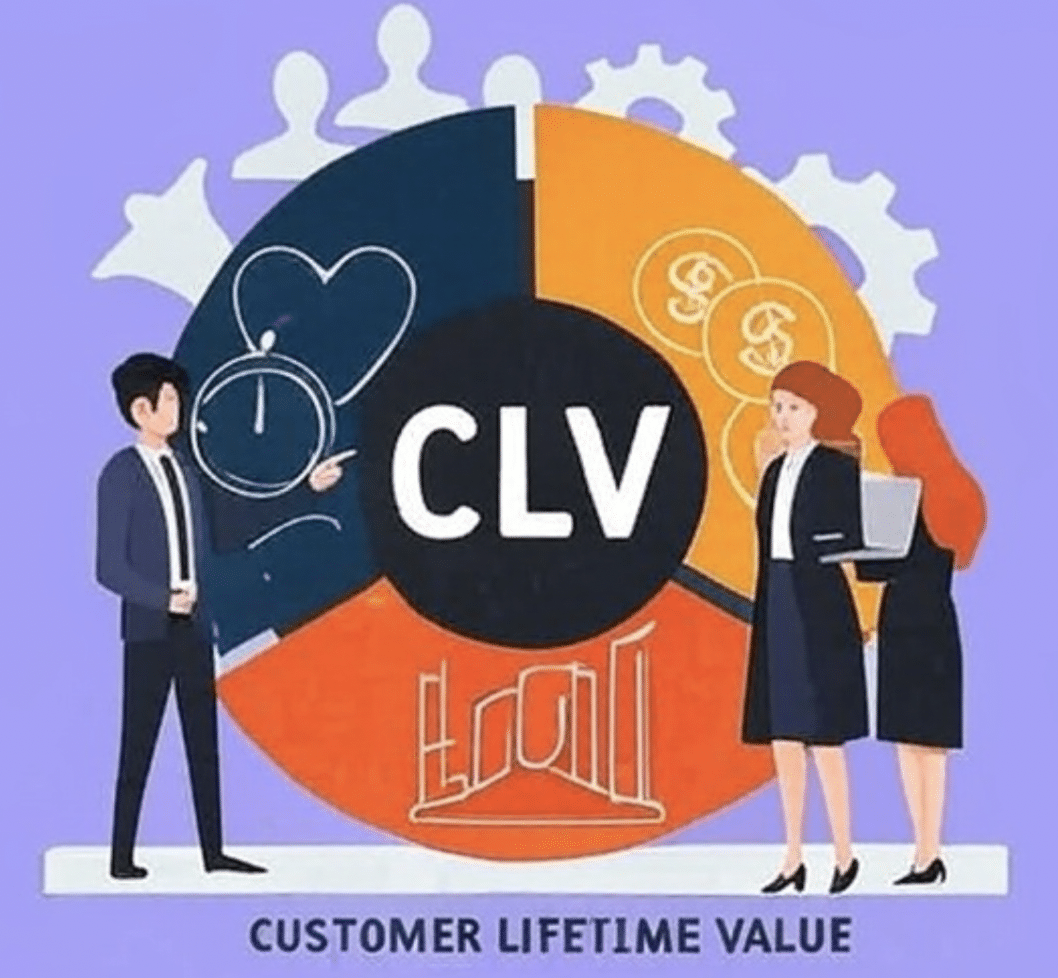
As a Shopify seller, you're constantly looking for ways to grow your business. You invest in marketing, optimize your product pages, and strive for that initial sale. But what happens after that first purchase? Do you see customers return again and again? Or do they buy once and disappear?
The secret to sustainable, profitable growth on Shopify lies in cultivating a "lifetime customer" base. This isn't just about making a single sale; it's about building lasting relationships that translate into consistent revenue over time.
Understanding the "Lifetime Customer": It All Starts with CLV
The concept of a "lifetime customer" is intrinsically linked to Customer Lifetime Value (CLV), often referred to as LTV. Simply put, CLV is the total revenue a customer is expected to generate for your business over their entire relationship with your brand.
For Shopify sellers, understanding and maximizing CLV is paramount. It shifts your focus from one-off transactions to long-term profitability. Think about it: acquiring a new customer can be expensive. Retaining an existing one, especially a loyal one, is far more cost-effective and drives higher returns.
How to Calculate CLV on Shopify:
While sophisticated predictive CLV models exist, you can start with a basic Shopify CLV formula:
CLV = (Average Order Value x Purchase Frequency) x Average Customer Lifespan
- Average Order Value (AOV): Your total revenue divided by the number of orders.
- Purchase Frequency: The average number of times a customer buys from you within a specific period (e.g., a year).
- Average Customer Lifespan: How long, on average, a customer remains active with your brand.
You can find much of this data within your Shopify analytics to get a good estimate. Knowing these CLV metrics Shopify provides a clear benchmark for your efforts.
Strategies to Increase Customer Lifetime Value (CLV) on Shopify
Now that you understand what CLV is, let's dive into actionable strategies to increase customer lifetime value Shopify and transform one-time buyers into genuine "lifetime customers."
1. Master Customer Retention: Keep Them Coming Back
Customer retention is the bedrock of CLV. It's about keeping your existing customers engaged and satisfied so they choose your store again and again.
- Shopify Customer Retention Strategies:
- Exceptional Post-Purchase Experience Shopify: The journey doesn't end at checkout. Send personalized thank-you emails, provide clear shipping updates, and offer easy returns. A smooth, positive experience encourages repeat purchases.
- Email Marketing for Customer Retention Shopify: Segment your customer list and send targeted emails. Think reorder reminders, exclusive discounts for past purchasers, new product announcements tailored to their previous buys, and even birthday greetings.
- Reducing Churn Shopify: Identify why customers might be leaving. Is it product quality, customer service, or a lack of engagement? Address these pain points proactively.
- Track Your Progress: Monitor your customer retention rate Shopify and repeat customer rate Shopify. These metrics will tell you how effectively you're keeping customers engaged.
2. Cultivate Deep Customer Loyalty: Beyond the Transaction
Customer loyalty goes beyond retention; it's about fostering an emotional connection with your brand that makes customers choose you over competitors, even when there are cheaper options available.
- Shopify Customer Loyalty Programs:
- Best Loyalty Apps Shopify: Explore apps that allow you to implement points programs, VIP tiers, or tiered rewards systems.
- Shopify Rewards Program: Give customers points for every purchase, referrals, social media shares, or even leaving reviews. Allow them to redeem these points for discounts or exclusive products.
- VIP Tiers Shopify: Create different loyalty levels (e.g., Bronze, Silver, Gold) with increasing benefits like early access to sales, free shipping, or dedicated support.
- Building Customer Loyalty Shopify: Focus on building a community around your brand. Engage with customers on social media, host contests, or create exclusive content for your loyal followers.
- Personalization Shopify: The more you understand your customers, the better you can tailor their experience. Use their purchase history and Browse behavior to recommend relevant products and offers.
3. Optimize for Higher Value:

While retention and loyalty build the relationship, strategies to increase average order value and purchase frequency directly boost your CLV.
- Upselling and Cross-Selling Shopify:
- Upselling: Offer a higher-priced version of a product the customer is considering (e.g., "Upgrade to the deluxe kit for just $20 more!").
- Cross-selling: Suggest complementary products that go well with what the customer is buying (e.g., "Customers who bought this also bought..."). Implement these strategically on product pages and at checkout.
- Subscription Models Shopify: For suitable products, offer subscription options. This creates recurring revenue and builds in loyalty by making replenishment effortless for the customer.
- Customer Segmentation Shopify: Divide your customers into groups based on their behavior, demographics, or purchase history. This allows you to tailor marketing messages and offers, making them more relevant and effective. For example, you might have a segment of "high-value loyal customers" who receive exclusive previews and deeper discounts.
4. Leverage Customer Service for Loyalty
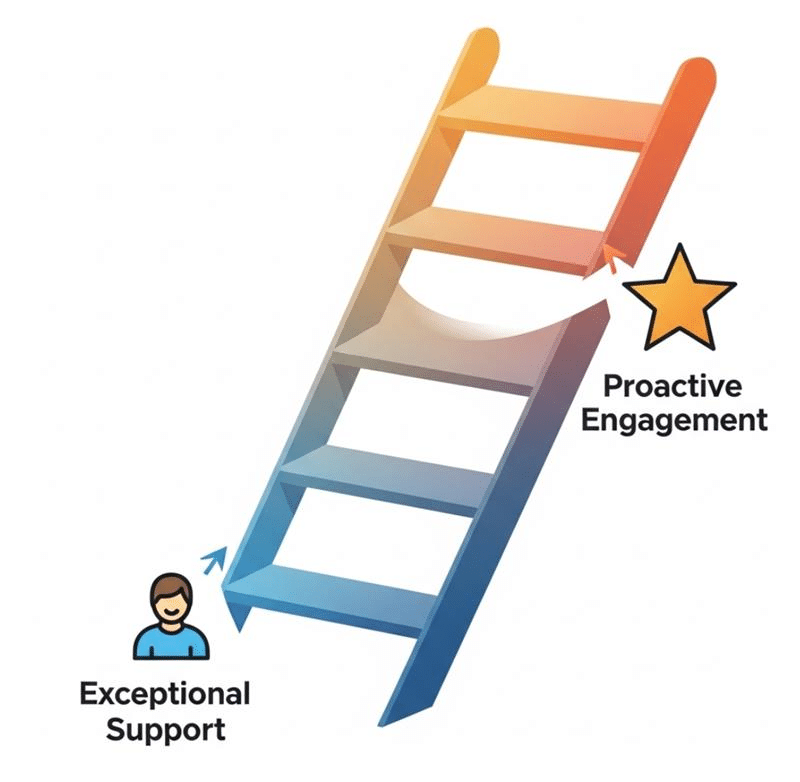
Think of your customer service for loyalty Shopify as a proactive tool, not just a reactive one.
- Exceptional Support: Fast, friendly, and helpful support resolves issues and builds trust.
- Proactive Engagement: Reach out to customers with tips, tricks, or product care instructions.
5. Incentivize Referrals
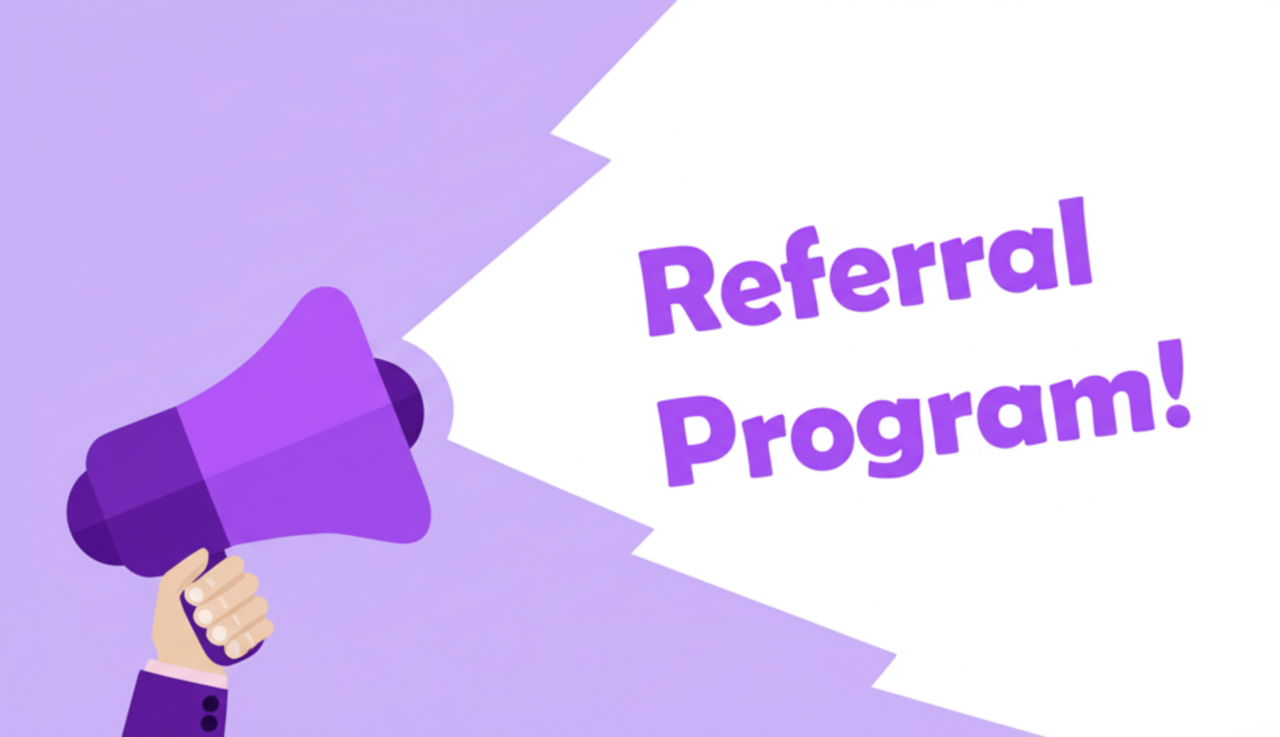
Referral programs Shopify are a powerful way to acquire new customers while rewarding your existing loyal base. Offer discounts or store credit to both the referrer and the new customer they bring in. This leverages the power of word-of-mouth marketing and further cements the value of your "lifetime customer."
The Takeaway for Shopify Sellers
Focusing on the "lifetime customer" is not just a buzzword; it's a fundamental shift in how you approach your Shopify business. By prioritizing Customer Lifetime Value, investing in customer retention and customer loyalty, and implementing smart strategies like personalization, subscription models, and effective email marketing, you'll transform one-time buyers into valuable, long-term assets. This approach will not only boost your bottom line but also create a thriving, engaged community around your Shopify brand. Start building your "lifetime customer" base today!
Leave a Reply





Manual Exports Don’t Scale Forever
Replace Manual Spreadsheet Workflows Before They Slow Your Team Down