.svg "Gorilla ROI")

Article Summary
✅ Shopify's native dashboard shows revenue in real time, but it cannot feed a Google Sheet that updates automatically. Every CSV you export is already stale the moment you open it.
✅ Connecting Shopify to Google Sheets requires either a point-and-click data connector or formula-based API access. Both eliminate the manual export cycle that breaks multi-channel reporting.
✅ Gorilla ROI pulls Shopify orders, inventory, refunds, and COGS into Google Sheets through a sidebar interface that requires no code, no developer, and no scheduled exports.
Connecting Shopify to Google Sheets is now easier than ever.
Shopify's API is well-documented, or the manual export method has always worked.
You can also try and use Claude Code to create your own Shopify to Google sheets connector, which would end up costing hundreds of dollars in spend to maintain the tokens required.
Another problem is that every manual export is a snapshot. It captures what was true at one moment and ages the second you close the browser.
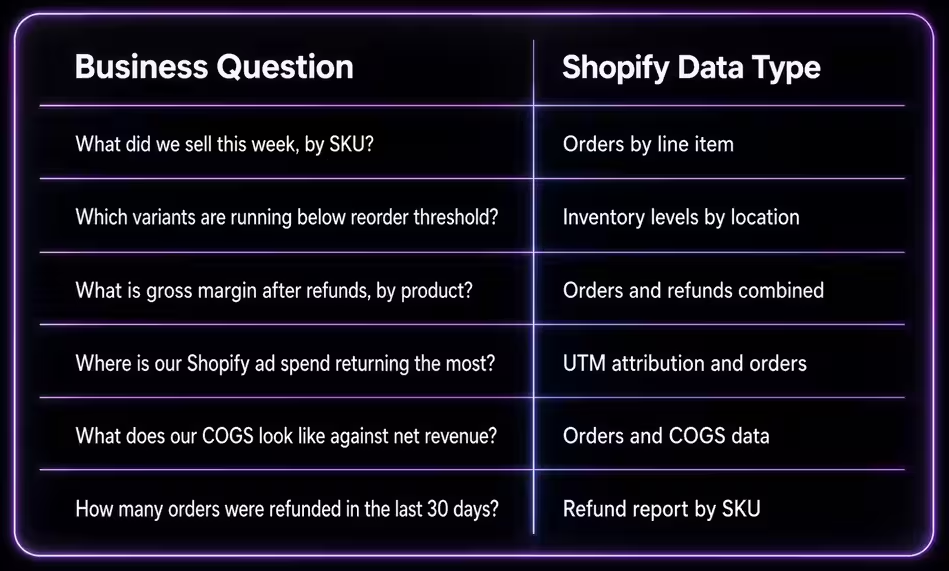
WHAT SHOPIFY DATA LIVES WHERE AND WHAT TO PULL INTO YOUR SHEET
Shopify holds more operational data than its dashboard surfaces. The dashboard is built for a merchant glancing at revenue. Google Sheets is built for a team making decisions from structured, current data. The job of a Shopify-to-Google Sheets connection is to move the right data from one environment into the other, automatically, without someone in the middle downloading a file.
The table below maps the operational questions a $500K–$5M Shopify brand is asking, the data type that answers them, and the sheet tab where that data belongs.
If any one of these questions takes more than 60 seconds to answer from your current setup, the data is not structured. It is archived in a CSV folder somewhere.
WHY SHOPIFY'S DASHBOARD CANNOT REPLACE A LIVE SHEET
Shopify's analytics are accurate inside Shopify. They are not designed to feed a team that runs operations from Google Sheets.
The dashboard shows you what is happening right now. It does not write that data into a structured row your team can reference tomorrow, build a formula against, or compare to last quarter's numbers in the same view. Every time someone needs a number from Shopify, they go back to the dashboard, export a CSV, paste it into a sheet, and hope the columns match what was there last time.
They never match. Shopify updates its export column structure without notice. A "Lineitem name" column becomes "Line Item Title." A field that was in column G moves to column K. The VLOOKUP that worked last month breaks without notice, and nobody catches it until the margin report is already wrong.
Shopify's dashboard is designed to make you feel informed. It is not designed to make your spreadsheet current.
The only way to have live Shopify data in Google Sheets is to connect the two directly, so the sheet pulls from Shopify instead of waiting for a human to carry the data between them.
HOW A DIRECT SHOPIFY-TO-GOOGLE SHEETS CONNECTION ACTUALLY WORKS
A direct Shopify-to-Google Sheets connection reads from Shopify's API and writes structured rows into your sheet on a schedule you set. No CSV. No copy-paste. No column mismatch.
Gorilla ROI offers a Shopify integration to Google Sheets through a point-and-click sidebar installed directly in Google Sheets. You open the sidebar, select the Shopify data type you want (orders, inventory, refunds, or product data), set the date range, and run the import. The data lands in the sheet in seconds. The column structure stays consistent every time because the connection reads from the same API endpoints, in the same format, on every pull.
The practical difference shows up in how the team works. Instead of someone downloading a CSV Tuesday morning and pasting it into a shared sheet, the sheet updates on a schedule. The COGS formula your ops manager built last quarter still works today because the columns have not moved. The inventory tab your VA checks for reorder decisions reflects yesterday's fulfillment activity, not last Tuesday's export.
Cory from Woodies.com put it plainly: "Data automation at its finest. I run a 2 million dollar business with 2 employees. Tools like Gorilla allow me to do it."
That is the operational reality of a live connection. Two people running a $2M brand without a data team. The sheet does the carrying.
One honest caveat: a live connection pulls what Shopify's API exposes. Shopify limits some historical data access at certain plan levels, and custom metafields require additional setup. For standard orders, inventory, and refund data across the last 12 months, the connection covers what a growing brand needs. For anything deeper, such as custom Shopify apps with private data schemas, you will need developer access to extend it.
Gorilla ROI is the wrong choice for your Shopify setup in three situations. If Shopify is generating under $5K a month for you, a weekly CSV export takes 15 minutes. The automation does not pay until the manual time costs more than the subscription. If your team does not run daily operations from Google Sheets, the data connector delivers to a destination nobody opens. The data lands clean, but clean data in an unused sheet changes nothing. If you need a pre-configured profit view that shows you a number when you log in, Gorilla ROI is not that product. The orders, inventory, and refund data lands structured and ready. The report you build on top of it is yours to create.
WHAT THE DATA LOOKS LIKE IN YOUR SHEET
This is what a Shopify orders pull looks like inside Google Sheets when it comes through Gorilla ROI. These are the actual column names the sheet receives, not a description of what the data might include.
A team that has this structured in their sheet can build a weekly P&L, a reorder dashboard, and a channel margin comparison without downloading a single file. The data is already there. The formulas just need a consistent structure to reference. This is what the connection provides.
For the Shopify sales report and the Shopify COGS tracking breakdowns, those tabs pull from the same import using different filters: one groups by date, one groups by SKU against cost data you enter once.
HOW THE TWO APPROACHES COMPARE STEP BY STEP
The manual process works. It works in the same way that writing invoices by hand works, until the volume makes the time cost impossible to justify.
TERMS WORTH KNOWING BEFORE YOU BUILD THIS
Shopify API (Application Programming Interface)
Shopify's API is the technical interface that allows external tools to read store data including orders, inventory, refunds, and products, without requiring a CSV export. A Google Sheets connector like Gorilla ROI reads from this API directly. The practical implication is that the data structure stays consistent regardless of changes Shopify makes to its CSV export format, because the API and the export are separate systems.
Point-and-click data import
A point-and-click import is a method of pulling data into Google Sheets through a sidebar interface that requires no formulas, no code, and no developer involvement. The user selects the data type, sets a date range, and runs the pull. Gorilla ROI's sidebar operates this way for Shopify, Amazon, and Walmart data. For teams without technical staff, this is the fastest path from a connected store to a working sheet.
Scheduled refresh
A scheduled refresh is an automated re-pull of data that runs on a timer without manual input. In a Shopify-to-Google Sheets setup, a scheduled refresh means the sheet updates overnight or at a set interval, so the team opens a current sheet rather than a stale one. The alternative, manual refresh, requires someone to trigger the import each time, which reintroduces the human bottleneck the connection was supposed to eliminate.
FAQ
Can I pull Shopify data into Google Sheets without coding?
Yes. Gorilla ROI connects Shopify to Google Sheets through a point-and-click sidebar that requires no formulas, no scripts, and no developer involvement. You install the add-on, connect your Shopify store, select the data type you want, and run the import. The data lands in a structured sheet in seconds. The Gorilla ROI integrations page covers the full list of supported data types across Shopify, Amazon, and Walmart.
Does the sheet update automatically, or do I have to pull data manually?
Both options are available. You can run a manual import any time from the sidebar, or set a scheduled refresh that updates the sheet on a timer: daily, hourly, or on a custom interval. For operational reporting, a scheduled refresh means the team always opens a current sheet without triggering the pull themselves.
What Shopify data types does Gorilla ROI pull into Google Sheets?
Gorilla ROI pulls Shopify orders, inventory levels, refunds, product data, and COGS against your order data. Each data type lands in a structured sheet with consistent column names. For specific field-level detail, the Shopify inventory management and Shopify marketing attribution articles cover how each tab is typically structured in a multi-channel operation.
Will this work if I also sell on Amazon?
Yes. Gorilla ROI connects Amazon, Shopify, and Walmart data into the same Google Sheets workbook. Amazon data lands in one set of tabs, Shopify in another, and you build cross-channel views using standard Google Sheets formulas that reference both. The Shopify Amazon integration article covers how to structure a workbook for both channels without duplicating data across sheets.
What happens if Shopify changes its export column format?
Nothing changes on your end. Gorilla ROI reads from Shopify's API, not from a CSV export. API field names are versioned and stable. When Shopify updates its export file format (which it does periodically without notice), your connection and your formulas are unaffected.
Can I connect Shopify to QuickBooks through Google Sheets?
Google Sheets can serve as the bridge between your Shopify data and your accounting workflow. Once Shopify data is structured in a sheet, you can build exports that feed your bookkeeper or sync with your accounting software. The Shopify QuickBooks integration article covers how that handoff works in practice.
Is the data read-only, or can the connector write back to Shopify?
The connection is downstream only by design. Gorilla ROI reads from Shopify's API and writes into Google Sheets. It does not write back to Shopify. This is a deliberate architecture choice. A connector with write access to your Shopify store creates the risk of accidental inventory changes, order modifications, or pricing overwrites. Read-only keeps the sheet as a clean reporting layer without any risk to your live store data.
Shopify to Google Sheets Setup Checklist
SHOPIFY → GOOGLE SHEETS SETUP CHECKLIST
Before connecting:
☐ Confirm Shopify plan includes API access (Basic plan and above)
☐ Identify which data types you need: orders / inventory / refunds / COGS
☐ Decide on date range for first import (start with last 90 days)
☐ Create a dedicated Google Sheet for Shopify data (separate from your master ops sheet)
☐ Plan your tab structure before importing: one tab per data type (orders, inventory, refunds)
Connecting:
☐ Install Gorilla ROI from the Google Workspace Marketplace
☐ Connect your Shopify store from the sidebar
☐ Run a test import for orders. Confirm order_id, sku, net_revenue columns are present
☐ Run a test import for inventory. Confirm sku and quantity columns match your catalog
☐ Set scheduled refresh frequency (daily covers standard operational reporting needs)
After importing:
☐ Build your SUMIF or QUERY formulas referencing order_date and sku columns
☐ Connect your COGS tab to net_revenue using sku as the join key
☐ Test the scheduled refresh once before sharing the sheet with the team
☐ Lock the raw data tabs so team members cannot accidentally overwrite imported rows
☐ Save the sales analysis template as a starting point for your P&L structure